Quick answer
A practical MCP debugging checklist for Claude Code, Codex, Cursor, and GitHub Copilot when a server is configured but tools do not appear.
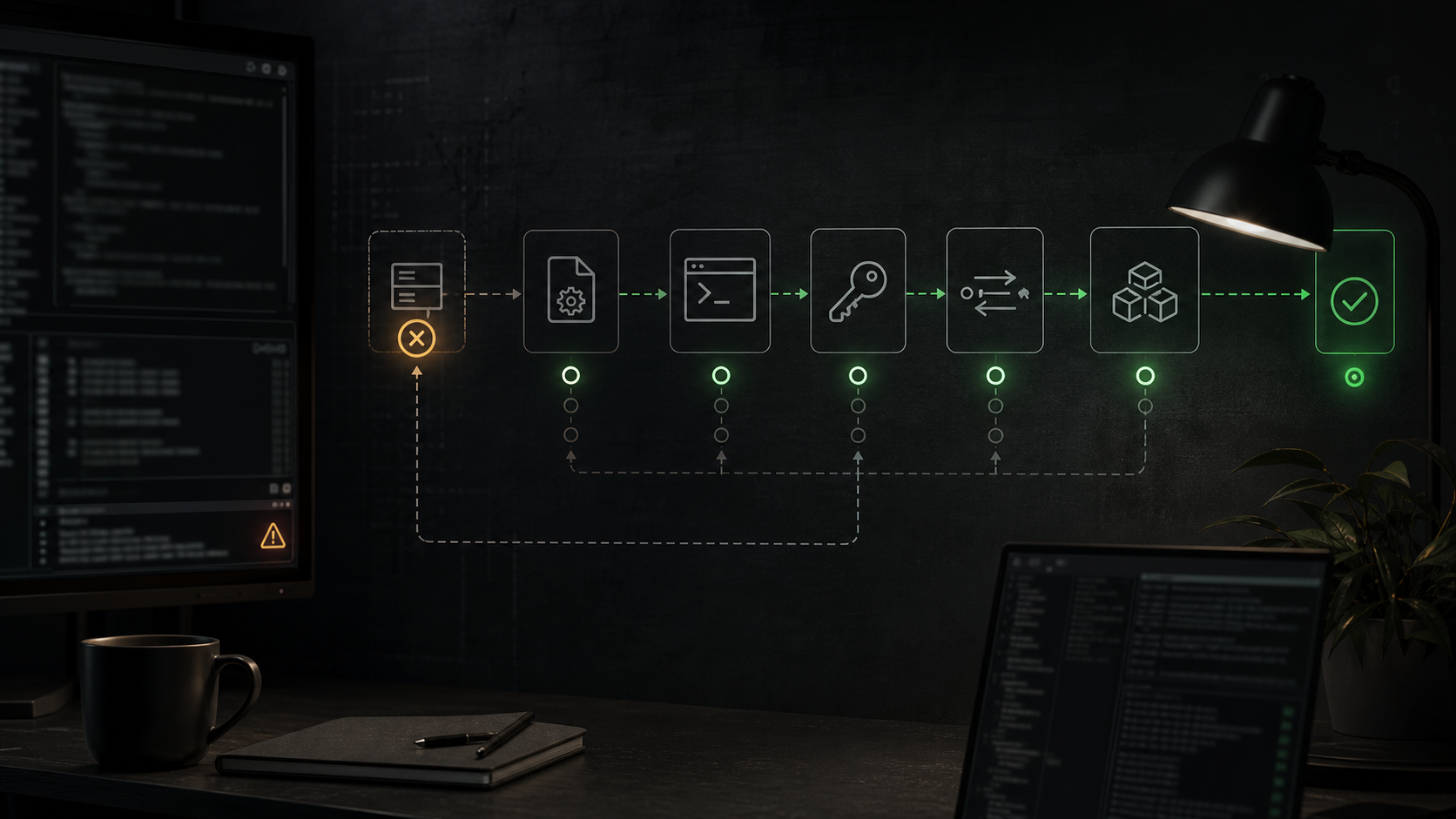
If an MCP server is not showing up, debug it in layers: wrong config location, invalid JSON or TOML, command not found, missing environment variables, broken transport, empty tools/list, or host approval policy. Most failures are process and configuration failures, not model failures. Prove each layer before editing prompts or reinstalling the server.
The five most common causes
| Symptom | Likely cause | Fast check |
|---|
| Server does not appear at all | Wrong config file or wrong format | Open the host-specific config and validate syntax |
| Server appears but has zero tools | Server initialized but exposes no tools | Inspect the host's MCP status or run an MCP inspector |
| Works in terminal but not in app | Different environment or PATH | Use absolute command paths and explicit env values |
| Project server is listed as pending | Approval gate | Approve the server in the host UI or session |
| Remote server connects inconsistently | Wrong transport, URL, auth, or timeout | Check HTTP endpoint, headers, OAuth, and startup logs |
Use the checklist in order. Jumping straight to "the model ignored my tool" usually wastes time because the model cannot use a tool the host never registered.
Step 1: confirm the agent reads the config file
Start by proving the host sees the server definition.
For Claude Code:
claude mcp list
claude mcp get <server-name>
Inside an active Claude Code session, use:
/mcp
Project-scoped servers from .mcp.json can show as pending until approved. If a teammate says "it works for me" and you only pulled the repo, check for a pending approval state before changing the JSON.
For Codex:
codex mcp --help
codex mcp list
Inside the Codex TUI:
/mcp
Then confirm the table name in config.toml is exactly:
[mcp_servers.server-name]
Not [mcp.servers.server-name], not mcpServers, and not JSON pasted into TOML.
For Cursor, open Cursor's MCP settings and check whether the server appears under available tools. If it does not, verify whether you edited ~/.cursor/mcp.json for global tools or .cursor/mcp.json for the project.
For GitHub Copilot cloud agent, remember that repository MCP config is saved in GitHub.com repository settings. Editing a local IDE config will not change what the cloud agent can use.
Step 2: validate syntax before debugging the server
Bad syntax can make a server disappear before it starts.
For JSON files:
python -m json.tool .mcp.json
python -m json.tool .cursor/mcp.json
For Codex TOML, inspect the file for the exact table shape:
[mcp_servers.docs]
url = "https://developers.openai.com/mcp"

[mcp_servers.localTool]
command = "npx"
args = ["-y", "some-mcp-server"]
env = { "API_KEY" = "value" }
Common mistakes:
- JSON comments copied into a file that must be strict JSON.
mcpServers copied into Codex instead of [mcp_servers.<name>].- An
env object written in JSON syntax inside TOML. - A trailing comma in JSON.
- A server name changed in one place but not another.
Do not move to runtime debugging until the config parses cleanly.
Step 3: run the MCP command outside the agent
For local stdio servers, the host starts a command. Test that command directly:
which node
which npx
which uvx
node --version
npx -y some-mcp-server --help
If the config uses a relative command, replace it with an absolute command path while debugging:
which npx
Then use the resolved path:
{
  "mcpServers": {
    "docs": {
      "command": "/opt/homebrew/bin/npx",
      "args": ["-y", "some-mcp-server"]
    }
  }
}
This removes one variable: whether the GUI, TUI, or remote worker has the same PATH as your shell.
Step 4: check environment variables and absolute paths
Environment variables are the quiet failure. A token can exist in your terminal and still be invisible to a desktop app, launched IDE, or cloud agent.
Check the value in the same shell you use to launch the agent:
printenv API_KEY
printenv GITHUB_TOKEN
Then make the server config explicit:
{
  "mcpServers": {
    "internal-api": {
      "command": "/opt/homebrew/bin/node",
      "args": ["/Users/me/mcp/internal-api/server.js"],
      "env": {
        "API_KEY": "${API_KEY}"
      }
    }
  }
}
For Codex, use the supported TOML keys:
[mcp_servers.internal-api]
command = "/opt/homebrew/bin/node"
args = ["/Users/me/mcp/internal-api/server.js"]
env = { "API_KEY" = "value" }
startup_timeout_sec = 20
For GitHub Copilot cloud agent, local environment variables are not the source of truth. Repository MCP configs can reference Copilot agent secrets and variables, and those names must be prefixed with COPILOT_MCP_.
Step 5: check transport and startup logs
MCP supports local stdio and remote HTTP-style transports, but the debugging path is different.
For stdio, the server must speak JSON-RPC over standard input and output. The MCP transport spec says a stdio server must not write anything to stdout that is not a valid MCP message. Put logs on stderr. A single startup banner, debug print, or package warning on stdout can corrupt the stream before the host lists tools.
For remote HTTP servers, check:
- The URL points to the MCP endpoint, not a documentation page.
- Required headers are present.
- OAuth is supported by that host.
- The server is reachable from the same environment where the agent runs.
- Local HTTP servers bind to
127.0.0.1 when they are intended to be local only.
If the server is slow to start, increase the host-specific startup timeout where supported. Codex, for example, supports startup_timeout_sec und tool_timeout_sec for MCP servers.
A connected MCP server is not the same as a useful tool server.
MCP servers can expose tools, resources, and prompts. Tools are the model-callable functions. Resources are read-oriented context. Prompts are reusable templates. If your host only surfaces tools for a given workflow, a server that exposes resources or prompts but no tools can look "missing" even though it connected.
Use host diagnostics first:
claude mcp get <server-name>
In Claude Code, /mcp shows connected servers and tool counts. A server that advertises the tools capability but exposes no tools should be treated as a server-side issue.
For GitHub Copilot cloud agent and Copilot code review, GitHub currently supports MCP tools, not MCP resources or prompts. If the server's value is mainly a resource browser or prompt library, it may not appear as callable functionality there.
Step 7: check approvals and host restrictions
Approval state can look like a missing server.
Claude Code project .mcp.json servers require approval before use. If a project server appears as pending, approve it in an interactive session before assuming the config is broken.
Codex can apply per-server and per-tool approval settings in config.toml, including allowlists and denylists:
[mcp_servers.github]
url = "https://api.githubcopilot.com/mcp/"
enabled_tools = ["search_issues", "get_pull_request"]
disabled_tools = ["delete_repository"]
default_tools_approval_mode = "prompt"
GitHub Copilot cloud agent is more sensitive because tool use is autonomous. GitHub recommends allowlisting specific read-only tools. If you configure a broad tools: ["*"] entry for a server with write capabilities, expect a platform or organization owner to restrict it.
When to delete and re-add the server
Delete and re-add the server only after you know which layer failed.
Re-add when:
- The server name is wrong and precedence rules are hiding the one you meant to use.
- You pasted the wrong format from another host.
- OAuth state is stale and the host provides a clean re-auth flow.
- The config file has accumulated multiple experimental entries with the same intent.
Do not re-add when:
- The command cannot run outside the agent.
- The server writes logs to
stdout. - The server exposes no tools.
- A required token is missing.
- The host is waiting for project approval.
Reinstalling a server package will not fix a config location, approval, or environment problem.
Final debug checklist
- Confirm the right host: Claude Code, Codex, Cursor, or GitHub Copilot cloud agent.
- Confirm the right config file and scope.
- Validate JSON or TOML syntax.
- Check the exact server name.
- Run the local server command outside the agent.
- Replace ambiguous commands with absolute paths.
- Pass required environment variables explicitly.
- Senden
stdio logs to stderr, never stdout. - Check remote URLs, headers, OAuth, and reachability.
- Inspect tool counts, not just server presence.
- Confirm the server exposes tools, not only resources or prompts.
- Approve pending project servers.
- Apply host-specific tool allowlists and restrictions.
- Re-add only after the failed layer is identified.