Quick answer
Learn when to give a coding agent browser access, how Playwright MCP fits, and how to verify localhost UI work with screenshots, viewports, accessibility checks, and PR evidence.
Use browser automation when the agent's output is visual, interactive, or browser-dependent. A passing build proves the code compiled. It does not prove the layout fits, the button works, the logo is visible, the empty state renders, or the mobile viewport is usable. For frontend work, browser access turns a coding agent from a file editor into a product reviewer.
The mental model is simple: the browser is the agent's inspection bench. The repo is where it changes the product; localhost is where it proves the product still works.
What browser automation gives a coding agent
Most coding agents can read files, edit files, and run commands. That is enough for many backend changes, refactors, and test fixes. It is not enough for UI work where the failure lives in the rendered page.
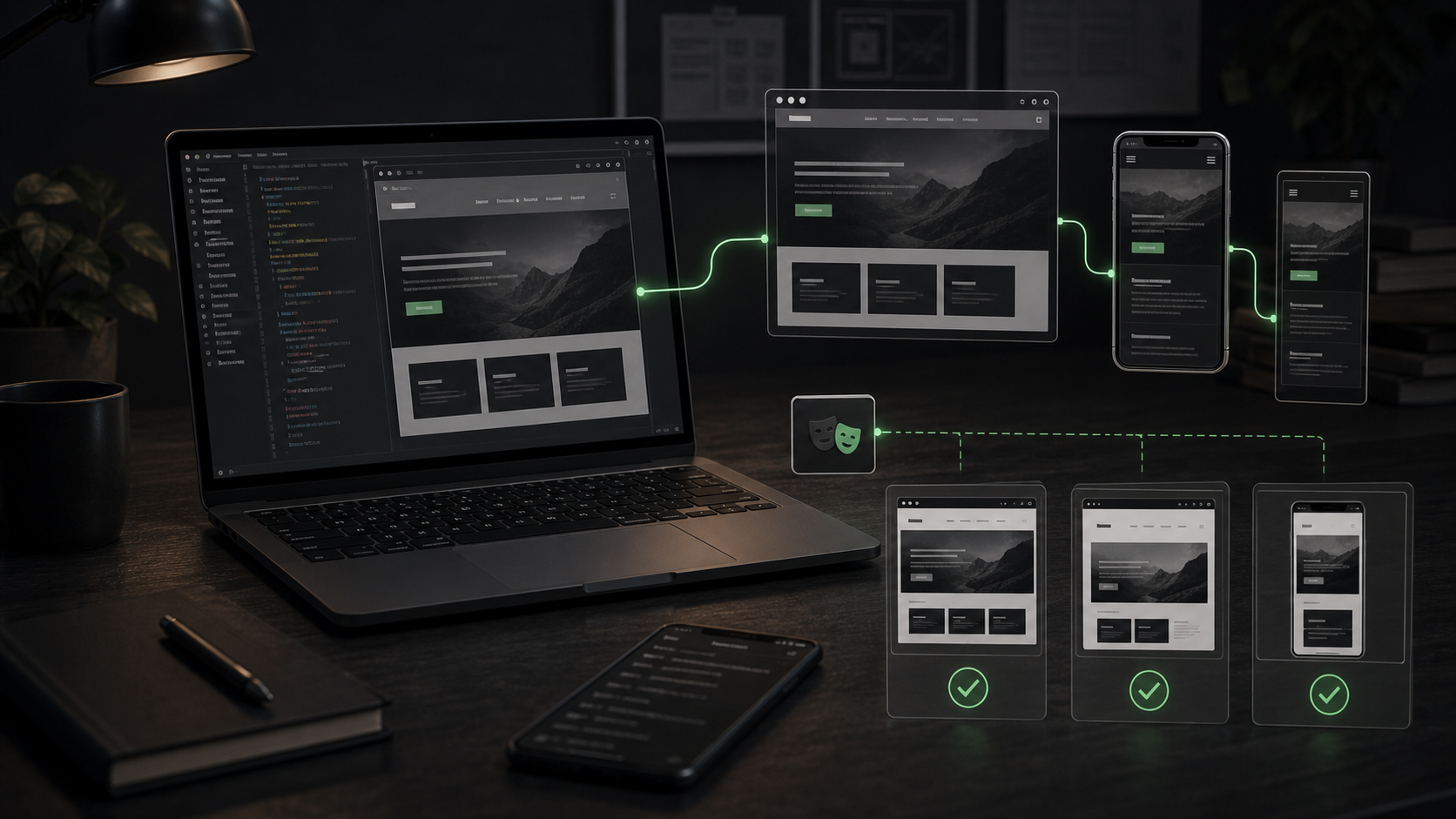
Browser automation gives the agent a live page to inspect. With Playwright MCP, the agent can navigate to a URL, read an accessibility snapshot, click elements, type into inputs, take screenshots, inspect console messages, review network requests, manage tabs, and resize the browser. Those are not decorative capabilities. They are the difference between "I changed the component" and "I verified the component in the product surface."
Use it for:
- Frontend tasks where layout, responsive behavior, or interaction quality matters.
- Pages that depend on runtime data, route state, client-side hydration, or browser APIs.
- Design-system changes where one small CSS mistake can break multiple views.
- Authenticated product flows where the component only appears after a real session exists.
- PRs where the reviewer needs visual evidence, not just a claim that the UI was checked.
Do not use a browser for every edit. If the agent changed a utility function, fixed a type error, or updated documentation, unit tests and static checks may be enough. Browser automation is most valuable when the answer depends on what a user can see or do.
Playwright MCP and a Playwright test are related, but they solve different moments in the workflow.
Playwright MCP is useful while an agent is exploring. It gives the agent tools for live navigation, snapshots, clicks, typing, screenshots, console inspection, network inspection, and viewport changes. The agent can use those tools while it is still deciding what to fix.
A Playwright test is useful when the behavior should become part of the repo's repeatable safety net. If the agent discovers that the pricing toggle broke on mobile, it should not stop at a screenshot. It should fix the issue, then consider adding or updating a test that protects the behavior.
| Need | Better fit |
|---|
| Inspect a page during a coding session | Playwright MCP |
| Capture visual evidence for a PR comment | Playwright MCP |
| Reproduce a flaky user flow once | Playwright MCP first, then a test if it is important |
| Enforce behavior on every CI run | Playwright test |
| Validate keyboard navigation across releases | Playwright test plus manual spot checks |
The good workflow is not MCP instead of tests. It is MCP to find and verify the issue, then tests for anything that should never regress.
Localhost setup checklist
Most browser-agent failures are setup failures. The agent cannot verify a UI it cannot open.
Before asking for browser verification, make the local target explicit:
Run the app, open http://localhost:3000/pricing, check desktop and mobile,
take a screenshot, inspect the console, and report any layout or runtime issues.
Give the agent these details:
- The dev command:
npm run dev, pnpm dev, yarn dev, turbo dev, or the repo-specific script. - The expected port and route:
http://localhost:3000/tools/ is better than "open the app." - Required setup:
cp .env.example .env.local, seed command, fixture user, or mock API mode. - Expected success signal: page title, visible heading, known CTA, or a specific component.
- What not to touch: production data, real sends, payment flows, admin-only writes.
For Codex CLI, the Playwright MCP server can be added with:
codex mcp add playwright npx "@playwright/mcp@latest"
The same server can also be configured in ~/.codex/config.toml:
[mcp_servers.playwright]
command = "npx"
args = ["@playwright/mcp@latest"]
Once the server is available, keep prompts concrete. "Check the UI" is too loose. "Open the local route, resize to mobile, confirm the nav does not overlap the hero, and attach a screenshot path" gives the agent an actual inspection job.
Screenshots are evidence, not decoration
A screenshot is useful because it makes the agent's claim reviewable. It lets a human see whether the page loaded, whether the component is present, and whether the visual hierarchy survived the change.
Ask for screenshots when the agent changes:
- Page layout, typography, spacing, color, or responsive rules.
- Logos, product imagery, charts, tables, cards, or media containers.
- Empty, loading, error, or permission states.
- Navigation, modals, menus, drawers, or form flows.
- Anything where "looks fine" would be an unsafe final answer.
The best agent output includes a short evidence block:
Verified:
- Desktop route: http://localhost:3000/tools/
- Mobile viewport: 390 x 844
- Console: no runtime errors
- Screenshot: /tmp/tools-page-mobile.png
- Notes: primary CTA visible, logo row intact, no horizontal overflow
The screenshot should not replace a written observation. It should support it. A senior review still names the risk: hidden logo, clipped text, missing focus state, broken sticky header, unstyled loading state, or a component that only works at one viewport.
Mobile and desktop viewport checks
A desktop-only browser check catches the easiest failures. The failures that ship are usually narrower: text overflow at mobile width, a fixed sidebar covering content, a sticky footer hiding a button, a hero that consumes the entire first viewport, or a table that cannot be scanned.
For UI tasks, ask the agent to check at least two viewport classes:
Verify at 1440 x 900 and 390 x 844. Report layout shifts, clipped text,
horizontal scrolling, hidden controls, and any content that overlaps.
For product pages, add one route-specific expectation:
- Tool directory: real logos remain visible and are not replaced with generic icons.
- Review page: pricing, integrations, use cases, and limitations remain readable.
- Blog article: headings, tables, code blocks, and internal links work on mobile.
- Dashboard: dense data remains scannable without turning into a pile of cards.
Viewport resizing matters because agents often optimize for the first screenshot they see. A two-viewport rule forces the work to survive both the editor's comfortable desktop and a real user's phone.
Accessibility and keyboard checks
Browser automation should not stop at pixels. The agent should also verify whether the interface is reachable.
A practical accessibility pass for a coding agent looks like this:
- Read the accessibility snapshot for the main route.
- Confirm important controls have useful roles and names.
- Tab through the primary interactive path.
- Check that focus is visible.
- Confirm icon-only buttons have accessible labels.
- Verify that menus, dialogs, and drawers can be opened and dismissed from the keyboard.
This is not a replacement for a full accessibility audit, but it catches basic regressions early. It is especially useful when the agent creates custom controls, swaps buttons for icons, or changes modal behavior.
Give the agent a bounded prompt:
Run a keyboard pass on the filter menu. Tab to it, open it, select one option,
close it with Escape, and confirm focus returns to the trigger.
That prompt is better than "check accessibility" because it tells the agent which user path to operate.
Authenticated sessions and safety
Authenticated browser verification is where teams need discipline. The agent may need a session to see a dashboard, billing page, admin tool, or customer workflow. That does not mean it should receive production credentials in the prompt.
Use a safe setup:
- Prefer seeded development users over real customer accounts.
- Put local test credentials in the runtime environment, not in instruction files.
- Use staging or mock providers for payment, email, analytics, and CRM integrations.
- Tell the agent which actions are read-only and which actions are forbidden.
- Ask for screenshots that do not expose secrets, tokens, personal data, or private customer records.
For remote agents, be stricter. GitHub's Copilot cloud agent includes a default Playwright MCP server for web access, but its Playwright access is scoped to web resources hosted inside the agent's own environment, such as localhost or 127.0.0.1. That is a useful default: it nudges verification toward the isolated dev environment instead of arbitrary external browsing.
If a UI check needs third-party auth, create a test fixture. Do not train the team to paste passwords into prompts.
When browser automation is overkill
Browser automation has a cost. It can consume context, introduce setup flakiness, wait on slow dev servers, and distract from simpler verification.
Skip it when:
- The change is purely server-side and already covered by focused tests.
- The page is static documentation with no meaningful visual or interactive change.
- The task is a small copy edit and the rendering system is already stable.
- The agent would need unsafe credentials or production access to see the result.
- The browser check would duplicate a reliable CI test without adding evidence.
Use the lightest verification that proves the change. For UI work, that often means browser evidence. For non-UI work, it may mean unit tests, type checks, linting, or a targeted command.
Example frontend verification script
If a team wants a repeatable browser check, put the expectation in the repo. The agent can run it, update it, or convert observations into tests.
import { test, expect } from '@playwright/test';

test('tools directory renders key UI at desktop and mobile', async ({ page }) => {
  await page.goto('/tools/');
  await expect(page.getByRole('heading', { name: /best ai agent tools/i })).toBeVisible();
  await expect(page.getByRole('link', { name: /compare/i })).toBeVisible();

  const consoleErrors: string[] = [];
  page.on('console', (message) => {
    if (message.type() === 'error') consoleErrors.push(message.text());
  });

  await page.setViewportSize({ width: 390, height: 844 });
  await expect(page.getByRole('navigation')).toBeVisible();
  await expect(page.locator('body')).not.toHaveCSS('overflow-x', 'scroll');

  expect(consoleErrors).toEqual([]);
});
Keep scripts focused. A browser test that tries to prove the entire site in one run becomes noisy. A browser test that checks one important route, one interaction, and one viewport can be useful for both humans and agents.
Final UI QA checklist
Before a coding agent opens a PR for frontend work, ask for this evidence:
- The app started successfully on the expected localhost port.
- The changed route was opened directly, not inferred from code.
- Desktop and mobile viewports were checked.
- A screenshot was captured for the most important state.
- The browser console was checked for runtime errors.
- Loading, empty, or error states were checked if the component depends on data.
- Keyboard navigation was checked for new interactive UI.
- Authenticated checks used safe test credentials or seeded data.
- The final note names any remaining visual risk instead of saying only "looks good."
Browser automation is not about making the agent look more capable. It is about making its frontend work inspectable. If the article, tool page, dashboard, or app screen matters to a user, the agent should verify it in the surface where the user will experience it.